The Artima Developer Community
Sponsored Link

Web Buzz Forum
How to Remove Windows 7 Shortcut Extension and Shortcut Arrow Icon

0 replies on 1 page.

Welcome Guest
  Sign In

Go back to the topic listing  Back to Topic List Click to reply to this topic  Reply to this Topic Click to search messages in this forum  Search Forum Click for a threaded view of the topic  Threaded View   
Previous Topic   Next Topic
Flat View: This topic has 0 replies on 1 page
sandip dedhia

Posts: 5234
Nickname: blogsdna
Registered: Jan, 2009

sandip dedhia is Owner & Author of Blogsdna.com A Popular Technology Blog
How to Remove Windows 7 Shortcut Extension and Shortcut Arrow Icon Posted: Jan 16, 2009 1:36 AM
Reply to this message Reply

This post originated from an RSS feed registered with Web Buzz by sandip dedhia.
Original Post: How to Remove Windows 7 Shortcut Extension and Shortcut Arrow Icon
Feed Title: BlogsDNA
Feed URL: http://www.blogsdna.com/feed/
Feed Description: Technology - Web 2.0 - Linux - Gadget - Blogging Tips
Latest Web Buzz Posts
Latest Web Buzz Posts by sandip dedhia
Latest Posts From BlogsDNA

Advertisement

Windows 7 Shortcut

Microsoft Windows 7 has got best look and feel and many new features too as compared to Windows Vista and XP. Several things you might have customized or tweaked while you have worked on Windows Vista and XP and one such popular tweak was to remove shortcut overlay icon and shortcut word when you create shortcut of any application or file on desktop.

If you have wished similar tweak for windows 7 then here is small guide on how to remove shortcut extension and shortcut overlay arrow icon from Window 7.

How to Remove Shortcut Extension from Windows 7

1. Click on Start and Type regedit in search bar and press enter (select yes if seen UAC prompt)

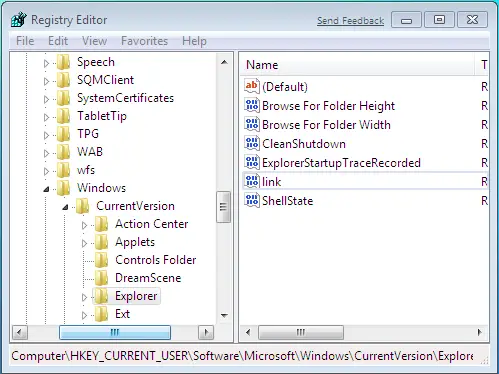
2. Navigate to following registry key

HKEY_CURRENT_USER\Software\Microsoft\Windows\CurrentVersion\Explorer

3. Locate “Link” in right pan of registry editor

Regedit Remove Shortcut Extension

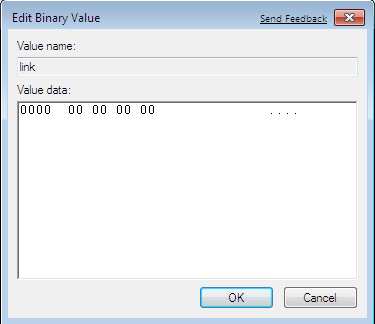
4. Double click or right click-> modify to modify registry key

5. Now change the value from 18 00 00 00 to 00 00 00 00 Press ok and exit regedit

Regedit Remove Shortcut Extension Windows 7

Now try to create shortcut on your desktop and it should not show shortcut extension.

How to Remove Shortcut Overlay Arrow icon from windows 7

Download this Reg file and follow readme instruction included within zip file to remove shortcut arrow icon.

After Applying Tweak

After Applying Tweak

Please Note: Do backup your registry before proceeding for any of this tweaks, we will not be responsible for any issue problem or arises by using above tweak .

Similar Posts:

Read: How to Remove Windows 7 Shortcut Extension and Shortcut Arrow Icon

Topic: How to: 8 Tips To Protect Yourself from Hackers in Facebook, Myspace, Twitter and Orkut Previous Topic   Next Topic Topic: How to: 2 Tips to Make Gmail Faster for Slow Internet Connections

Sponsored Links


Google
  Web Artima.com   

Copyright © 1996-2019 Artima, Inc. All Rights Reserved. - Privacy Policy - Terms of Use